Free online video editor
TIMELINE / NO WATERMARK / NO UPLOADCut your video, right in your browser.
A timeline for trimming, splitting and arranging clips, with separate audio editing, text and MP4 export. There is nothing to install and no signup, and your videos never leave your device.
Open the video editor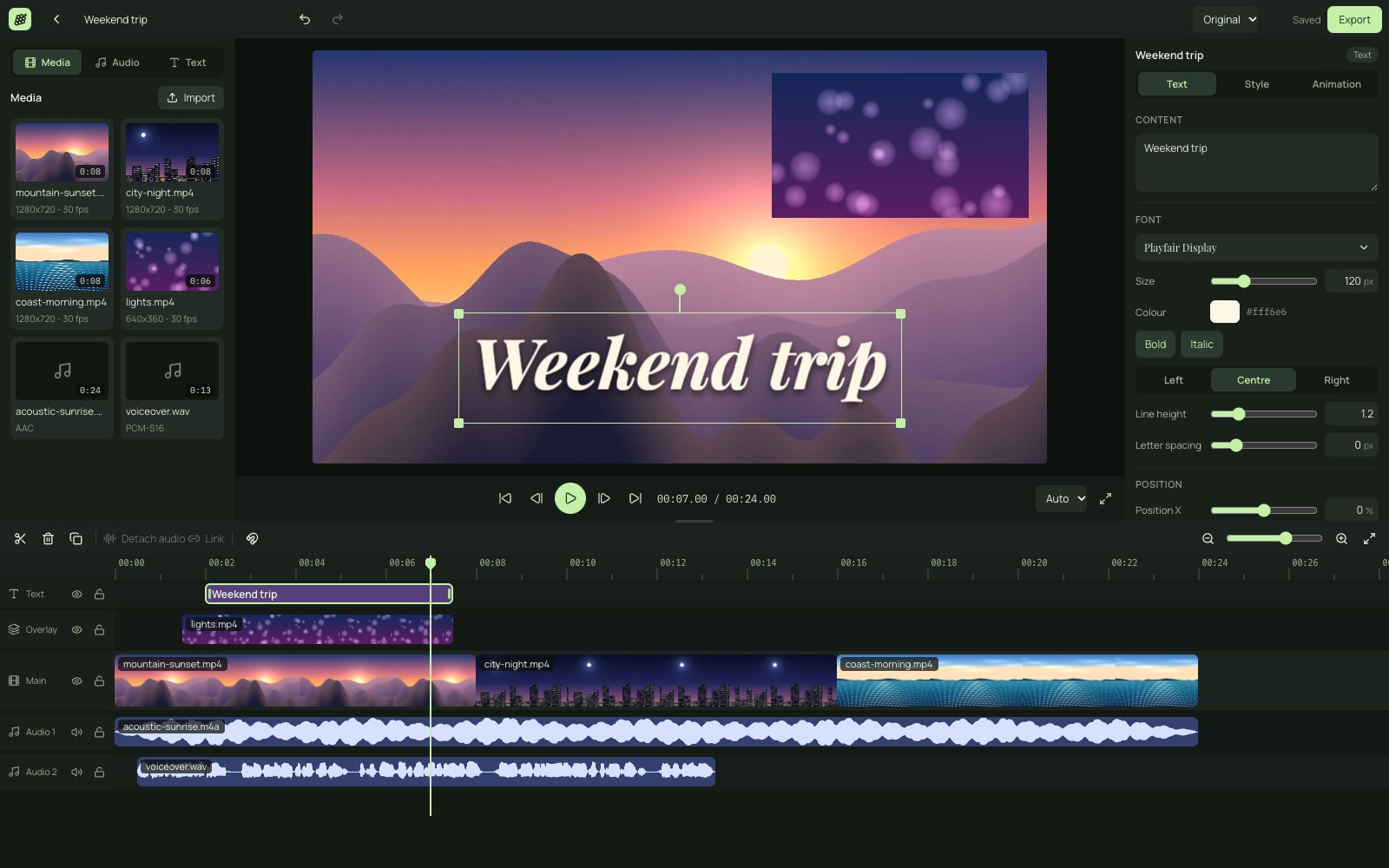
Everything a simple edit needs
- A timeline that closes its own gaps
The main track keeps clips butted together, so deleting or trimming one never leaves a hole. Extra lanes above and below hold overlays, text and audio.
- Trim, split and reorder
Drag a clip's edge to trim it, press S to split at the playhead, and drag clips into a new order. Every change can be undone, up to 100 steps back.
- Audio you can cut separately
A video's sound stays linked to its picture until you detach it. After that you can split, move or delete the audio alone, which is how you remove a cough or let music take over part of a clip.
- Volume, fades and speed
Each clip has its own volume and fade in and out. Speed runs from 0.25x to 4x, and the pitch of the sound stays the same unless you switch that off.
- Text and titles
Add text with about 50 Google Fonts, six ready-made styles, outline, shadow and a background box. Text can fade, slide, pop or type itself in and out.
- Sized for each platform
Set the canvas to 9:16 for TikTok, Reels and Shorts, 16:9 for YouTube, or 1:1, 4:5 and 3:4. Fill the space around a clip with a blurred copy of it, a colour or a picture.
- Overlays and picture in picture
Put a second video or a photo above the main track, then move, scale, rotate and crop it in the preview.
- MP4 export without a watermark
Export H.264 video with AAC sound at 480p, 720p or 1080p and 24 to 60 frames per second, and at 1440p or 4K where your device can encode them. You can also export the audio alone.
- Private by default
Decoding, editing and export all happen on your device. Nothing is uploaded, and there is no account, watermark or export limit.
What people use an online video editor for
Most edits are small. You want to split a video online and drop the part in the middle, trim the start and end off a screen recording, or join a few phone clips into one file. You want to add text to a video, mute a section, put a song under it, or turn a wide clip into a 9:16 one for TikTok, Reels or Shorts. Each of those takes a minute or two here, and the whole job happens inside the browser tab. The export is a normal MP4 that plays on phones, in WhatsApp and on YouTube.
A free CapCut alternative that runs in a browser tab
If you have used CapCut, the layout will look familiar: the preview sits above a timeline, the main track snaps clips together, and the tools for the selected clip appear beside it. This editor covers the basics that early versions of CapCut were known for, which are cutting, separate audio, text, speed, aspect ratios and a clean export. CapCut also has templates, effects, a music library and AI tools, and this editor has none of those. It is a web page, so it works on a work laptop where you cannot install apps, and your footage stays on your own device.
Three steps to a finished video
- 01Add your clips
Open the editor, then drop in videos, photos and audio or pick them from your device. They open straight in your browser and are not uploaded anywhere.
- 02Cut it together
Drag clips onto the timeline, then trim, split and reorder them. The sound of a video stays linked to its picture until you detach it, after which you can cut the audio on its own. Add text, change the speed, and pick a shape such as 9:16 or 16:9.
- 03Export
Press Export and choose a resolution and frame rate. Your device renders the MP4 and saves it to your downloads. The file carries no watermark and you never create an account.
Frequently asked
Is this video editor really free, with no watermark?
Yes. You do not need an account, exports carry no watermark and have no limit, and there is no paid tier or advertising. The editing and the export both run on your own device, so there are no servers to pay for. It is a one-person project with an optional tip jar.
Are my videos uploaded anywhere?
No. Your files are opened, edited and exported inside your browser, and no server receives them. The editor does fetch two things from other sites: the code library that reads and writes video files comes from jsDelivr, and a font is loaded from Google Fonts when you pick one for a text clip. Nothing from your video is sent with either request.
What can I do in the editor?
You can put videos, photos and audio on a timeline, then trim, split, reorder, duplicate and delete clips, with undo for every step. The main track closes gaps for you, and extra lanes hold overlays, text and audio. Each clip has position, scale, rotation, flip, crop, opacity and a speed from 0.25x to 4x. You can add text with about 50 Google Fonts, six presets and simple animations, and set the canvas to 9:16, 16:9, 1:1, 4:5 or 3:4 with a black, coloured, blurred or picture background.
Can I edit the audio separately from the video?
Yes. A video's sound starts out linked to its picture, so a split or trim cuts both at the same point. Detach or unlink the audio and it becomes its own clip that you can split, trim, move or delete while the picture stays where it is. That is how you remove a cough, mute one section, lay music under part of a clip, or let the sound start before the picture. Each piece has its own volume and fades, and you can link the two back together afterwards.
Which files can I open, and what does it export?
It opens MP4, MOV, WebM and MKV video, MP3, WAV, M4A, AAC, OGG and FLAC audio, and JPG, PNG, WebP and GIF pictures (a GIF comes in as a still). Whether a particular video plays depends on your browser's decoders, and the editor tells you if a file uses a codec your browser cannot read, which mostly happens with HEVC video from phones on older computers. Export is an MP4 with H.264 video and AAC sound at 480p, 720p or 1080p and 24 to 60 frames per second, plus 1440p and 4K where your device can encode them. You can also export the audio alone or save the current frame as a PNG.
Which browsers does it work in?
We recommend a Chrome-based browser such as Google Chrome, Brave or Microsoft Edge, because that is where the editor has been tested. It relies on WebCodecs, the browser feature that decodes and encodes video. Other browsers may work if they support it, and the page will tell you if yours cannot run the editor.
Does it work on a phone?
Yes. Chrome on Android is the recommended browser on a phone. The layout changes to a preview on top, a timeline you slide under a fixed playhead, and tools along the bottom. Phones have much less memory than laptops, so keep projects short, around ten minutes or less, and export at 1080p or below.
How long can my video be?
There is no fixed limit. Speed and memory depend on your device, because your device does all the work. A recent laptop handles projects up to about an hour, and the editor warns you past that point. Export of a 1080p video usually runs faster than real time on a recent computer.
Where are my projects saved?
In your browser's own storage on your device. The editor saves as you work, keeps a copy of the media you import, and lists your projects under Recent projects when you come back. Nothing is stored online, so a project made on one device will not appear on another, and clearing your browser's site data deletes it. Deleting a project in the editor frees the space.
How does it compare with CapCut?
It covers the basics that early versions of CapCut were known for: a simple timeline, splitting and trimming, separate audio, text, speed, aspect ratios and export without a watermark. CapCut has templates, effects libraries, a music library and AI tools, and this editor has none of those. What it offers instead is that it opens in a browser tab with no app or account, and your files stay on your device.
Open a video and start cutting
The editor is free and has no signup, watermark or ads.