Write a 45-Second Script With AI, Film It on Your Laptop and Add Captions
Get a 45-second talking-head script from a chat AI, film it in your browser, then turn the take into checked captions. Grok Bot wrote our 114-word script.
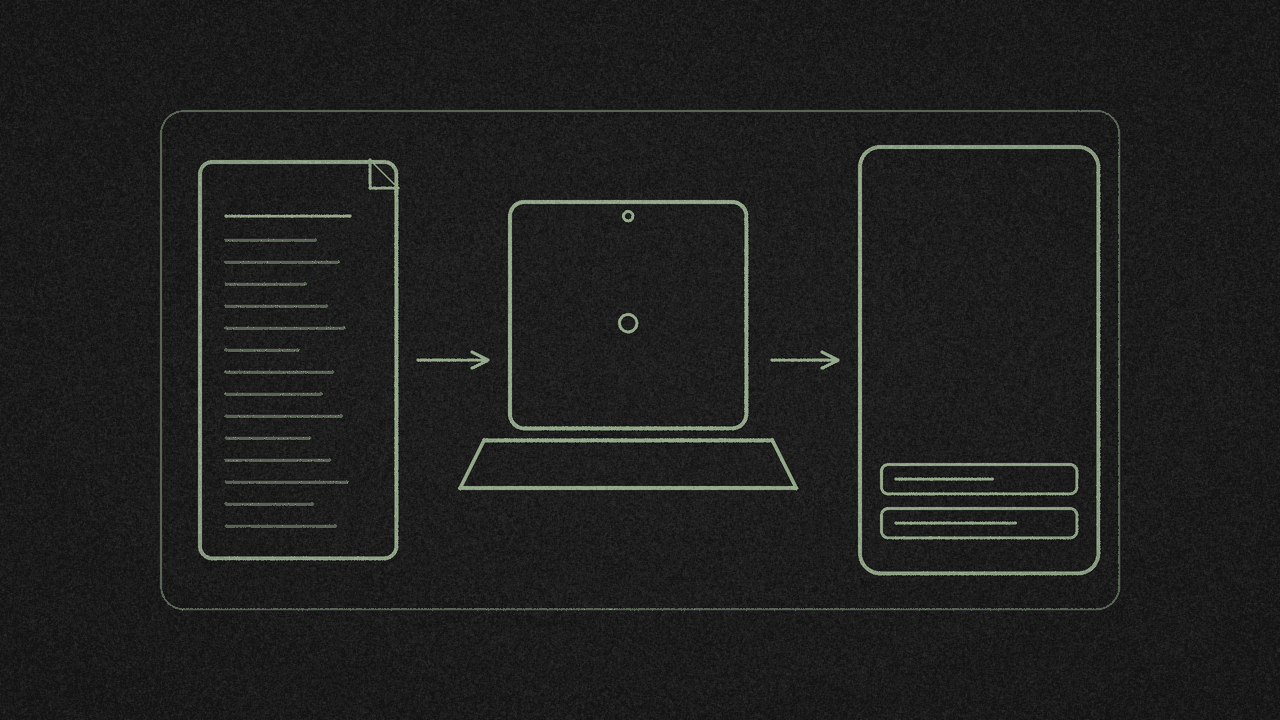
You want a short of yourself talking to camera, with captions, and you want it done tonight. The loop has four parts. A chat AI writes the script. You time it and film it on your laptop in the screen recorder. Then you turn the take into a subtitle file, check every line against your script, and import it into the video editor.
We already have a guide to turning an AI-written script into a captioned video with an SRT file. That one starts with a clip you already have, and ChatGPT guesses the caption times from the text. This guide adds the filming step, then takes the caption times from your own voice. You transcribe the take, correct the file against the script and import it.
Here's what we found:
- Grok Bot wrote a 114-word script from our prompt on 25 November. The hook is 5 words: "Your webcam isn't the problem." It kept to all six rules in the prompt, and its own word count matched ours.
- The 45 seconds is arithmetic. 114 words at about 150 words a minute comes to about 45.6 seconds. At a slower 130 words a minute it's about 52.6 seconds. Time your own read-through before you film.
- Transcribe can make up captions without an error. In our 21 November test, a 3:57 take with no usable speech came back as four cues of made-up lines. A real recording in the media transcriber also ended with "Thank you." and "Good luck!", and nobody in the video said either.
- There's no MP4 or WebM menu. The recorder saves MP4 or WebM depending on your browser. Chrome gave us an MP4.
- The video editor tells you how many captions it imported. On 20 November, Import subtitles showed "Added 14 captions on a Captions lane."
- The result screen has an Edit in video editor button. We've seen it after a take. We haven't clicked it through to check what arrives in the editor, so this guide uses Download instead.
shinmuscat has no built-in AI. You copy the prompt into a chat AI yourself, and you move the script and the subtitle file between tools yourself.
What we tested, and what we didn't
Our test computer has no camera, so we haven't filmed a take in Camera or Screen + camera for this guide. We also didn't run the transcribe, correct and import half on this script today. The steps below use labels from our hands-on tests of the same tools on 20 and 21 November, on other recordings, plus what the live pages show. Where a step is untested, we say so.
What you need
- A laptop with a webcam and a microphone, and a desktop browser.
- A chat AI. We used Grok Bot. The prompt is plain text, so you can paste it into ChatGPT unchanged.
- Your script open in a notes app or text editor while you check the captions.
Step 1: Ask a chat AI for the script
Paste this prompt into a fresh chat. Swap the topic line for yours.
Write me a 45-second talking-head script for a vertical short (TikTok, Reels or YouTube Shorts) that I will film myself on my laptop webcam.

Topic: three quick fixes that make a laptop webcam video look and sound better (light, camera height, sound).

Rules:
1. 105 to 120 spoken words, so it fits about 45 seconds at a normal pace. Tell me the exact word count at the end.
2. Open with a hook in the first sentence, under 12 words.
3. Short sentences I can say in one breath, one sentence per line, so they make clean captions.
4. Plain spoken English, no hashtags, no emojis, no stage directions inside the spoken lines.
5. End with one simple call to action.
6. Don't invent statistics or brand names.
Rule 3 asks for one sentence per line. That gives you short captions later, and makes the subtitle file easier to check against the script.
We sent this to a fresh Grok Bot session on 25 November. Here's the whole reply, word for word:
Your webcam isn't the problem.
Your setup is.
Here are three fixes you can do right now.
First, light.
Face a window or a lamp.
Never sit with a bright window behind you.
Light in front makes your face clear and sharp.
Second, camera height.
Stack some books under your laptop.
Raise the camera to your eye level.
No more looking up your nose.
Third, sound.
Your laptop mic hears every echo in the room.
Sit closer to your laptop.
Add a rug, a blanket, or some pillows nearby.
Soft things soak up the echo.
Even cheap wired earbuds with a mic will help.
That's all it takes.
Follow for more simple filming tips.

Word count: 114 spoken words.
We checked it against the six rules by hand. There are 19 spoken lines and 114 spoken words, inside the 105 to 120 we asked for. The last line is a word count, so leave it out when you read. The hook is 5 words. There are no hashtags, emojis, stage directions, numbers or brand names, and the script ends on one call to action. "First, light.", "Second, camera height." and "Third, sound." are short labels rather than full sentences, which still works as one caption each.
Using ChatGPT? Paste the same prompt in unchanged. We haven't run it there for this guide, so we can't show you its answer. OpenAI's help page on the ChatGPT home page says you can use ChatGPT before creating an account, and that "Access may vary by location or network".
Whichever chat AI you use, recount the spoken words yourself and read every line before you film.
Step 2: Time a read-through before you film
A word count only gives you an estimate. 114 words at about 150 words a minute is about 45.6 seconds. At 130 words a minute it's about 52.6 seconds, and at 160 it's about 42.8 seconds. We haven't timed this script out loud.
Read the script aloud once with a stopwatch running. If you run long, cut a line, then read it again. A 45-second short fits well inside YouTube's limit: YouTube's help page on three-minute Shorts says "You can now create YouTube Shorts up to three minutes in length."
While you read, change any line that doesn't sound like you. The captions will come from what you say, so the script you check them against should match it.
Step 3: Film it in the screen recorder
- Open the screen recorder on your laptop. The page heading reads Record your screen.
- Under the mode choices Screen, Screen + camera and Camera, pick Camera for a plain talking head. Pick Screen + camera if you want your screen in the shot as well.
- Leave Microphone on. Your voice is what the captions come from. In Camera mode, the Tab/system audio switch is hidden.
- Press Start recording and allow the camera and microphone when your browser asks. MDN's getUserMedia page explains how a web page asks for them.
- A 3-2-1 countdown runs, then recording starts. Read your script. Use Pause and Resume if you lose your place, and press Stop at the end.
The recorder uses your browser's default camera. The page has no camera picker and no mirror toggle, so if you have a second webcam plugged in, set the default in your browser first.
We've tested the mode labels, the switches and Start recording, and recorded in Screen mode on 21 November. We couldn't film in Camera or Screen + camera, because our test computer has no camera.
Step 4: Download the take, then get a subtitle file
When you press Stop, four buttons appear: Download, Edit in video editor, Record again and Transcribe.
Press Download first, so the take is safe whatever happens next. There's no format menu. The recorder saves MP4 if your browser supports it and WebM if it doesn't. On 21 November, Chrome gave us an MP4 named shinmuscat-recording- followed by the date and time.
Then get an SRT. It's the subtitle format that keeps a start and end time on every line. There are two ways.
In the recorder. Press Transcribe. On our 21 November test, the first run showed "Downloading speech model, one time, about 44 MB", then "Reading audio from your recording", then "Turning speech into text". When the transcript appears, open Download and pick SubRip subtitles (.srt). Plain text (.txt) and Copy drop the timestamps, so they won't work as captions.
In the media transcriber. Open the media transcriber, press Choose an audio or video file and pick the take you downloaded. It reads MP3, MP4, MOV, MKV, WebM, M4A, WAV, OGG, FLAC and more. While it works, it shows "Running on your processor. Long files take a while, so keep this tab open." Then use the same Download menu and pick SubRip subtitles (.srt).
Both run on your device. We've tested both on other recordings, and the media transcriber is the path we've proven on a file with real speech. We haven't run either on a take of this script.
Step 5: Check every line against your script
Open the SRT in a text editor next to your script and compare them line by line. Fix any misheard word. Leave the cue numbers and times alone.
Then look for lines you never said. Transcribe doesn't always fail with an error. On 21 November, a 3:57 recording with no usable speech came back as four cues of made-up lines, such as "I think I'm gonna die", with no warning. A transcript of a real recording also gained a closing "Thank you." and a "Good luck!" that weren't in the video. Delete any cue like that.
If you'd rather have a chat AI do the first pass, paste in your script and the SRT, ask it to fix only misheard words without touching the times, and still check its answer line by line. We didn't run that step today.
Save the corrected file with a name ending in .srt.
Step 6: Import the captions in the video editor
- Open the video editor. Choose Add videos, photos or audio, or Start with a blank project and add your take from Media with Import.
- Go to the Text tab and press Import subtitles. Pick your .srt file.
- Look for the confirmation. On our 20 November test it said "Added 14 captions on a Captions lane." Your number should match the cue count in your file.
- To fix a caption, click it and change its words in Clip details > Text > Content.
We tested these four steps with an SRT on 20 November, on a different recording.
Step 7: Export the short
Press Export in the top bar and stay on Video. Set Resolution, and set Aspect ratio to 9:16 for a vertical short. The editor picks MP4 or WebM for you. The captions are burnt into the picture, so keep your SRT if you want a file of them as well.
We didn't export a captioned take of this script. The SRT caption guide shows a tested 720p MP4 export from the same editor, on its own clip.
Limits
- One script, one run. Grok Bot wrote this script once, on 25 November. Ask again and you'll get different lines.
- Untested filming. We haven't filmed in Camera or Screen + camera for this guide.
- Untested captions for this take. The transcribe, correct and import steps come from our 20 and 21 November tests on other recordings.
- A rough length. The 45 seconds comes from a word count. Your stopwatch decides.
Next step
Paste the prompt from Step 1 into your chat AI, time the script out loud, then open the screen recorder, pick Camera and press Start recording.
Record in your browser
Screen, camera, or both. Download locally. No signup, no upload, no watermark.