Turn an AI-Written Script Into a Captioned Video With an SRT File
Ask ChatGPT to turn your script into an SRT file, check it, then import it in a free browser video editor and export an MP4 with captions. Prompt inside.
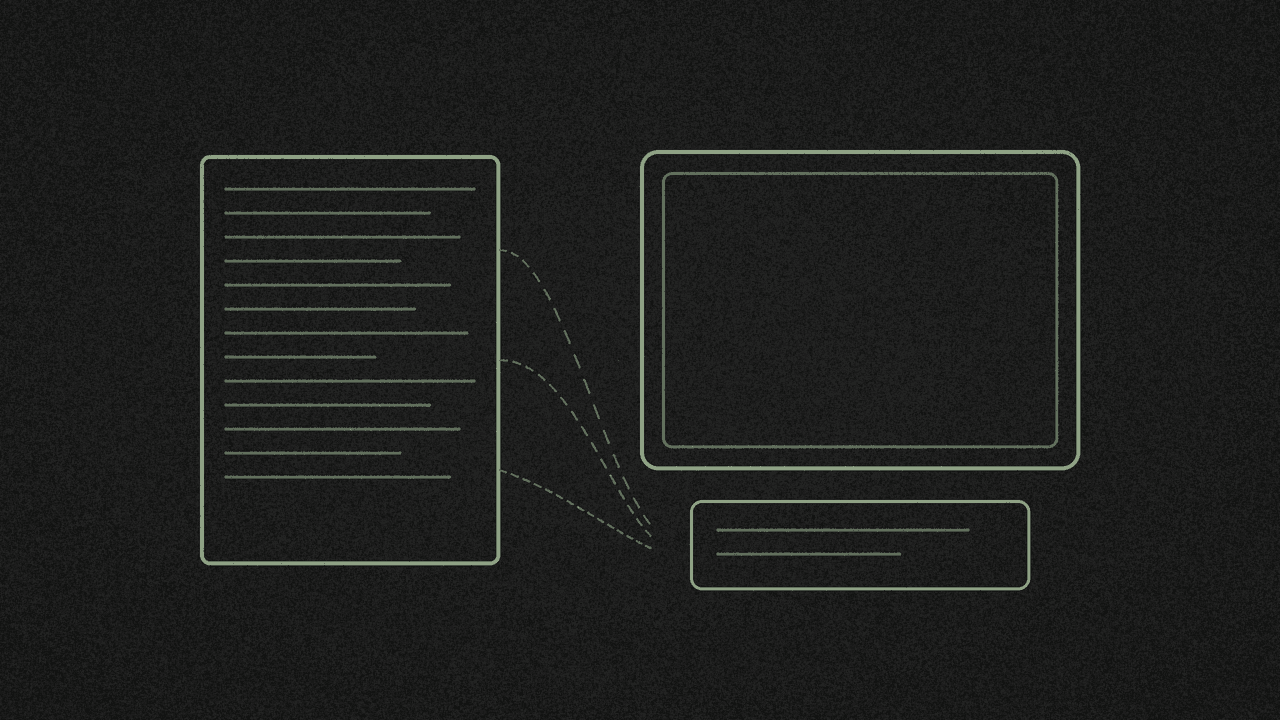
If you have a script and a clip, a chat AI can write the subtitle file for you. You paste its answer into a file ending in .srt, import it into the free video editor, fix any line, and export an MP4 with the captions in the picture.
We did the whole thing on 12 November. ChatGPT turned an 8-line script into an SRT with 8 captions, which we call cues. We checked the file three ways, including with a copy of the video editor's own caption reader, and it passed every time. Then we imported it, edited one cue and exported both the video and a fresh SRT.
shinmuscat has no built-in AI. The handoff is you, copying the AI's text into a file.
What you need
- A short script, one line per caption.
- A clip to put the captions on. Ours was 30 seconds, 1280 x 720.
- A chat AI. We used ChatGPT, which may work without an account. It answered us logged out on 12 November, but asked us to sign in on 11 November.
- A plain text editor, like Notepad or TextEdit.
Step 1: Write the script one line per caption
Each line of your script becomes one caption. Keep lines short. Here's the 8-line script we used:
I had a script, a phone clip, and no budget for captions.
So I asked an AI to turn my lines into a subtitle file.
It gave me numbered cues with start and end times.
I saved that text as a plain file ending in .srt.
Then I dropped my clip and the file into a free browser editor.
One caption was wrong, so I fixed it on the timeline.
I exported the video and a fresh subtitle file.
No signup, no watermark, and it took about ten minutes.
Step 2: Ask ChatGPT for the SRT
Paste this prompt into ChatGPT, then swap in your script and video length.
Turn the script below into a valid SRT subtitle file for a 30-second video.

Rules:
- One cue per line of the script, numbered from 1.
- Timestamps in the exact format HH:MM:SS,mmm --> HH:MM:SS,mmm.
- Start at 00:00:00,500 and finish by 00:00:30,000. No overlapping cues. Leave a short gap between cues.
- Give longer lines more time.
- Keep each cue to at most 2 lines of up to 42 characters.
- Output only the SRT text, with no explanation and no code fences.

Script:
I had a script, a phone clip, and no budget for captions.
So I asked an AI to turn my lines into a subtitle file.
It gave me numbered cues with start and end times.
I saved that text as a plain file ending in .srt.
Then I dropped my clip and the file into a free browser editor.
One caption was wrong, so I fixed it on the timeline.
I exported the video and a fresh subtitle file.
No signup, no watermark, and it took about ten minutes.
ChatGPT gave back 8 numbered cues. The first two looked like this:
1
00:00:00,500 --> 00:00:03,500
I had a script, a phone clip,
and no budget for captions.

2
00:00:03,700 --> 00:00:07,000
So I asked an AI to turn my lines
into a subtitle file.
The 42-character rule is our choice for the prompt, not a standard. The Library of Congress page on SubRip cites 32 characters per line.
Two things to know about the times. ChatGPT guesses them from the text, so they won't match your voice. And it didn't follow "give longer lines more time" well. Our 62-character line got 3.8 seconds, while the last line got 6.8 seconds because it stretched to the 30-second end.
Step 3: Save it as .srt and check it
Copy the reply into your text editor and save it as captions.srt. Then check for these. We fed broken files to the editor's caption reader, and none of these show an error:
- Code fences. If the AI wraps the SRT in a code block, delete both
```lines. The closing one turns into a caption on screen. - A missing blank line between cues. The next cue's number, times and text get stuck onto the caption before it.
- Overlapping times. A cue gets cut short where the next one starts. If less than 0.05 seconds is left, it disappears. A cue that ends before it starts is dropped.
- Long lines. The editor doesn't re-wrap imported captions, so keep the line rule in your prompt.
Dots instead of commas in the times, missing cue numbers and Windows line endings are fine. For the SRT format itself, see SRT vs VTT for TikTok captions.
Step 4: Import the clip and the captions
- Open the video editor and start a blank project.
- Go to Media, press Import and pick your clip. Click its tile to put it on the timeline.
- Go to Text, press Import subtitles and pick your .srt file.
Ours said "Added 8 captions on a Captions lane." The editor also takes .vtt, .ass and .ssa files, but we only tested .srt.
Step 5: Fix a line and check the timing
Click a caption on the timeline and change its words in the Text content box. We changed cue 6 to "One caption was off, so I fixed it here."
Then play it through. The AI's times came from the text, and our test clip had no speech, so we haven't checked captions against a real voice. Adjust any cue that lands early or late.
You can style the captions with Font, Size, Colour, Bold and the presets such as Boxed style. That look only lives in the video. An SRT holds the cue number, times and plain text, so styling never comes in or goes out with it.
Step 6: Export the SRT and the video
For the subtitle file, press Export .srt. It's named after your project. Ours matched the AI's file except for the cue we edited. All 8 timestamps stayed the same.
For the video:
- Press Export in the top bar. Stay on the Video tab.
- Set Resolution to 720p (1280 x 720). It starts on 1080p, even for our 720p clip, and 720p is the one we tested.
- Press Export video, wait for Export complete, then press Download.
Our MP4 came out at 1280 x 720, 30 fps and 30 seconds. The captions are burnt into the picture, as white bold text on a dark box. There's no switch to turn them off, so keep the SRT if you want captions viewers can turn off.
The editor is free, with no signup, ads or watermark, and it runs on your device.
Next step
Write a short script, run the prompt above and import the file into the video editor. Need something to say first? Here's how to turn viral TikToks into your own script with AI. Got captions from a TikTok instead? Start with TikTok captions to SRT. Making the clips with AI too? Here's how to stitch AI-generated clips into one short. Want English subtitles for someone else's X video? See how to translate an X video to English line by line with AI.
Put your SRT on a video
Import your clip, then Text > Import subtitles. Fix any line and export an MP4 with the captions in the picture. Free, with no signup, and it runs on your device.