How to Make a Mood Board Online for Free, Without an Account
Make a mood board online for free with no account: drop pictures on a blank board, add colour notes and labels, then export a PNG. Saves in your browser.
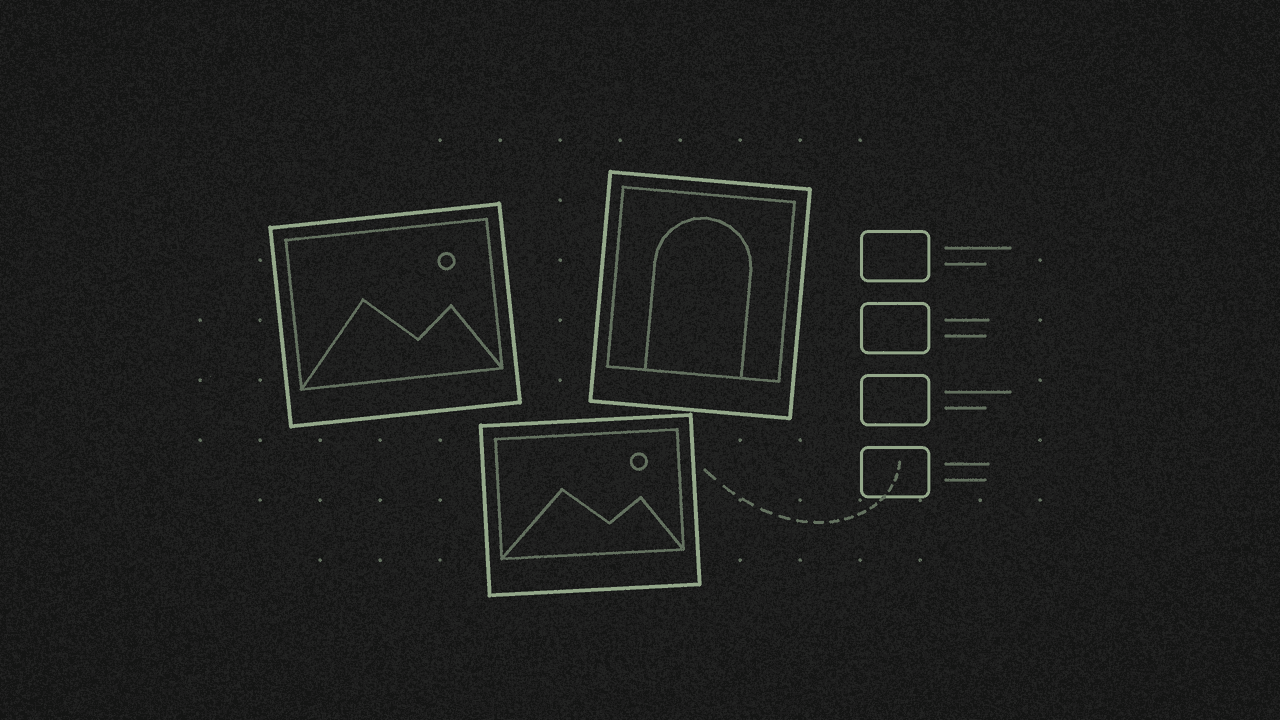
Open a blank board on the free infinite canvas, drop your pictures on, add colour notes and a few labels, then export a PNG. No accounts, no sign-up.
1. Collect your pictures
Put the pictures you want in one folder first: photos, screenshots, fabric swatches, rooms you like.
PNG, JPG and WebP work best. The board keeps those as they are when they're under 2.5 MB. Each picture can be up to 40 MB, and big ones are scaled so the long side is 2048 px, which is plenty for a board.
Making cut-outs of furniture or products? Remove the background first and save them as PNG, so they sit cleanly on the board.
2. Open a blank board
Go to the infinite canvas and start a new board. There's no account to make. Give the board a name, like "Living room" or "Wedding colours", so you can find it in the board list later.
Need a personal task board instead of pictures? Here's how to make a kanban board online without signing up.
3. Drop, paste or pick the images
Three ways in:
- Drag files from your folder onto the board.
- Paste a picture you've copied.
- Pick several at once with the image button.
4. Arrange them
Drag pictures where you want them, and pull a corner to resize. Pictures keep their shape as you resize them. To put one picture over another, use Bring to front or Send to back, or press ] and [.
Start with your strongest picture in the middle and build out from it.
5. Add colour and words
- Colour blocks. Draw a shape, or drop a sticky note in one of the 8 colours, from Lemon to Stone.
- Labels. A sticky note or a line of text says why a picture is there: "this green", "softer light".
- Arrows link a picture to a note.
- Emoji for a quick reaction.
Same sticky notes work for To do / Doing / Done. See kanban without signing up.
6. Export a PNG or PDF
Use Export to save the whole board, or only what you've selected, as a PNG or a PDF. PNG can have a transparent background. The grid never shows in the export, and there's no watermark.
7. Save a backup file
The board saves itself in this browser, on this device, a moment after each change. That's the only copy. Clearing your site data, using a private window, or the browser freeing up space can delete it.
So use Save file. You get a .shinboard file holding the board and its pictures. Keep it somewhere safe, open it again from the board list, or send it to someone who wants to edit it.
Where your files go
Your pictures and notes stay on your device and never go to our server. The site uses Google Analytics, which counts events such as opening a board, saving a file or exporting. Those counts never include your board names, text or file names. More on the privacy page.
Next step
Got your pictures together? Open the free infinite canvas, start a board and drop them on. It's free, with no signup.
Put it on a board
Drop in pictures, sticky notes, text and arrows on a free infinite canvas. Boards save in your browser, with no accounts and no sign-up.