How to Make a Kanban Board Online Without Signing Up
Make a kanban board online without signing up: three sticky-note columns for To do, Doing and Done on a free board that saves in your browser.
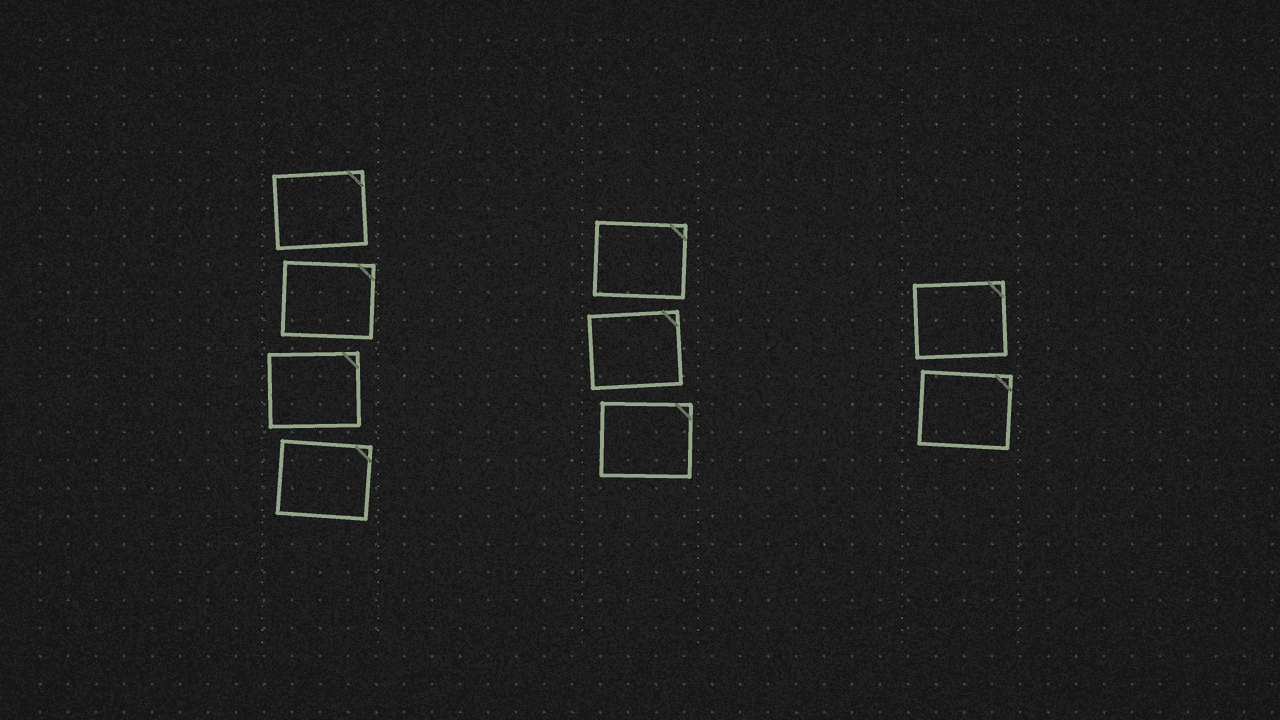
A personal task board with three columns, To do, Doing and Done, on the free infinite canvas. No account, no shared board. Sticky notes for each task; drag them across as work moves.
1. Open a blank board
Go to the infinite canvas and start a new board. There's no account to make. Name it something you'll find later, like "This week".
Making a picture board instead? See how to make a mood board online for free.
2. Lay out To do, Doing and Done
Kanban boards usually run left to right: work waiting, work in progress, work finished.
- Add a text label (or a tall shape) for To do, then Doing, then Done.
- Press Shift G to show the grid so the columns line up.
- Leave space under each label for sticky notes.
3. Add tasks as sticky notes
Drop one sticky note per task. There are eight pastel colours, from Lemon to Stone. Use colour for project or priority if that helps you scan the board.
Keep each note short: the next action, not a whole paragraph.
4. Move work across
When you start a task, drag its note from To do into Doing. When it's finished, drag it into Done.
Optional:
- An arrow from a blocked note to what it's waiting on.
- An emoji for a quick status.
- A picture if a screenshot helps (scaled so the long side is 2048 px).
This is a board for one person. It does not do real-time collaboration, shared links or templates. Miro and FigJam are built for teams working on one board together; this canvas is for working alone.
5. Keep it, and take a snapshot
The board saves itself in this browser, on this device, a moment after each change. That's the only copy. Clearing your site data, using a private window, or the browser freeing space can delete it. MDN's storage guide explains why browsers sometimes clear site data.
So use Save file. You get a .shinboard file with the board and its pictures. Keep it somewhere safe, or open it again from the board list.
Want a picture of the board? Export the whole board, or only your selection, as a PNG (or PDF). There's no watermark, and the grid never shows in the export.
Where your board goes
Your notes and pictures stay on your device and never go to our server. The site uses Google Analytics, which counts events such as opening a board, saving a file or exporting a PNG. Those counts never include your board names, text or file names. More on the privacy page.
Next step
Open the free infinite canvas, name a board, and put three sticky columns on it. It's free, with no signup.
Put it on a board
Drop in pictures, sticky notes, text and arrows on a free infinite canvas. Boards save in your browser, with no accounts and no sign-up.