How to Crop an Image Into a Circle
Crop an image into a circle in your browser: Elliptical Marquee with Shift, Inverse, Clear, trim edges, then export PNG so the corners stay transparent.
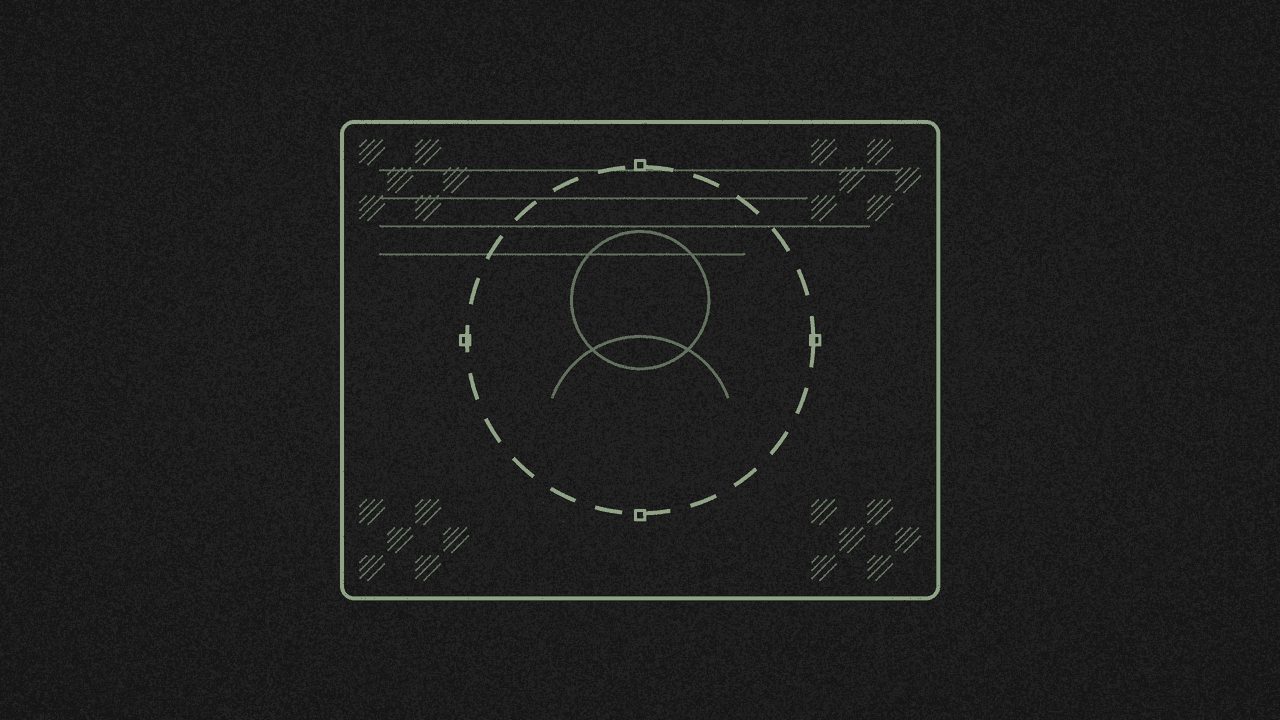
There is no one-click circle crop. In the free image editor you draw a circle with the Elliptical Marquee, invert the selection, clear the outside, then export a PNG so the corners stay transparent. No signup, and the file stays on your device.
1. Open your photo
Go to the image editor and open the photo. PNG, JPG, WebP, GIF (first frame), BMP, AVIF and PSD all open. Anything bigger than 8192 px on the long side is scaled down, and the editor tells you when it does.
2. Draw a circle with Elliptical Marquee
Choose the Elliptical Marquee tool (M). Drag an oval over the part you want to keep. Hold Shift while you drag to lock it to a circle. Centre the circle on the subject.
The Crop tool and Image > Crop to selection only crop to a rectangle (the selection's bounding box). For a round cut-out with see-through corners, stay on this marquee path.
3. Inverse, then Clear
Choose Select > Inverse so the selection is everything outside the circle. Then choose Edit > Clear (or press Delete). The outside pixels become transparent; Clear erases them, it does not fill with a colour.
Cutting out a person or logo instead of a circle? Use Select > Subject (AI), then the same Inverse and Clear steps.
4. Trim the empty space
Optional: choose Image > Trim transparent edges to crop the canvas down to the circle. If there is nothing to trim, the editor says "There are no transparent edges to trim."
5. Export as PNG
Choose File > Export as PNG (or WebP). Both keep transparency. Do not export JPG for this job: the export dialog warns "Transparent areas become white," and MDN's image format guide notes that JPEG has no alpha channel.
Need a different size first? See how to resize an image without losing quality.
On a Mac?
Apple's Preview guide covers rectangular crop, resize and rotate. Preview does not walk through a circle with transparent corners the way this editor does.
For the browser canvas idea behind a circular clip, see MDN's notes on clip().
Where your image goes
Your image never leaves your device. The editor runs in your browser. The site also loads Google Analytics, which counts visits. More on the privacy page.
Next step
Open the free image editor, choose Elliptical Marquee, hold Shift for a circle, then Inverse, Clear, and export a PNG. It's free, with no signup.
Crop a photo into a circle
Elliptical Marquee with Shift, Inverse, Clear, then export PNG so the corners stay transparent. Free, with no signup.