How to Transcribe a Lecture Recording Into Study Notes
Transcribe a lecture recording into study notes for free: open the file in your browser, keep the tab open, then export SRT to revisit or TXT to summarise.
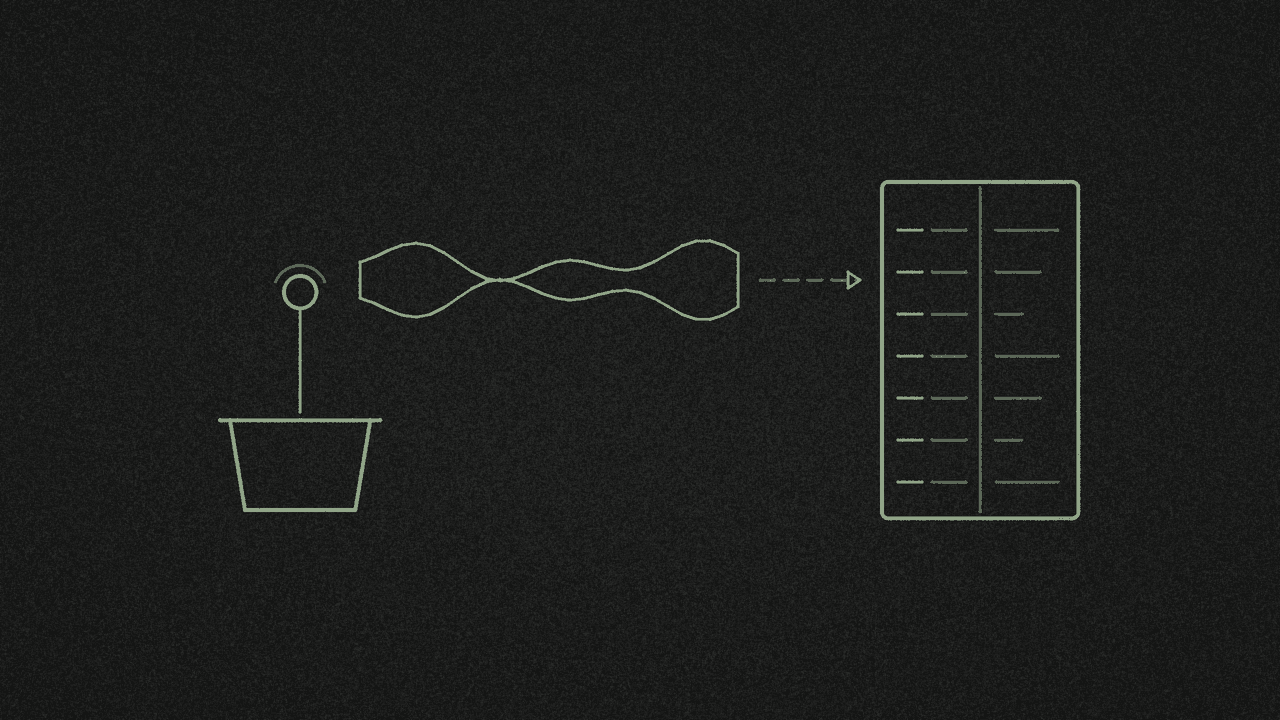
Got a lecture file from Voice Memos, a laptop recorder or class capture? Open it in the free media transcriber. The file stays on your device. Export SRT so you can jump back to a timestamp while you revise, or TXT so you can summarise in your own words.
1. Get the lecture file
This guide is for a recording you already have as a file, not a YouTube or LMS link.
- Phone. Voice Memos on iPhone, or the built-in recorder on Android. Export or share as M4A or MP3.
- Laptop. A voice or screen capture saved as MP4, WAV or WebM.
Many classroom lectures land as Voice Memos. If that's yours, how to transcribe a voice memo from your iPhone covers the export steps.
The lecture was a Zoom class? Find the M4A in Zoom's folder, then come back here for the study-notes part. How to transcribe a Zoom recording shows where Zoom saves it.
2. Open it in the media transcriber
- Go to the free media transcriber.
- Choose the lecture file. It takes MP3, MP4, M4A, WAV, WebM, MOV and other common formats.
- The first time, your browser downloads the speech model once and keeps it.
- Keep the tab open until it finishes. Phones pause pages in the background. A long lecture is faster on a computer than on a phone.
There's no length limit in the tool. Whisper detects the language on its own, and English is the most accurate. It doesn't translate, and it doesn't label speakers.
3. What happens to the quiet bits
Long silences between sections are skipped. That helps on lectures with pauses. If the whole file is silent, the tool says "No speech was found in this file."
4. Turn the transcript into study notes
Don't paste the whole transcript into an essay. Use it as a working copy.
- SRT (or the timestamps on the page) to jump back to a point in the recording when a definition is fuzzy.
- TXT to rewrite the ideas in your own words. UNC's Effective Note-Taking in Class guide stresses summarising, not copying.
Most lectures are one speaker. If there was a Q&A, add names by hand where it helps.
That short-video study-notes guide is for TikTok captions from a paste-link. For your own lecture file, stay on this path.
5. Export what you need
- TXT for notes and documents. Words only, with no timestamps.
- SRT when you want the times next to each line.
- VTT for a player on a web page.
Where your recording goes
Your lecture file never leaves your device. The page loads Google Analytics, which counts visits, and it does not send anything from your file. More on the privacy page.
Next step
Got the lecture file ready? Open the free media transcriber, choose it and keep the tab open. It's free, with no signup.
Transcribe your own recording
Open an audio or video file in the free media transcriber. It runs on your device, so nothing is uploaded. Copy the text or download TXT, SRT or VTT.