How to Transcribe a Voice Memo From Your iPhone for Free
Transcribe an iPhone voice memo for free: use Copy Transcript in Voice Memos if your iPhone supports it, or export the .m4a and get TXT, SRT or VTT.
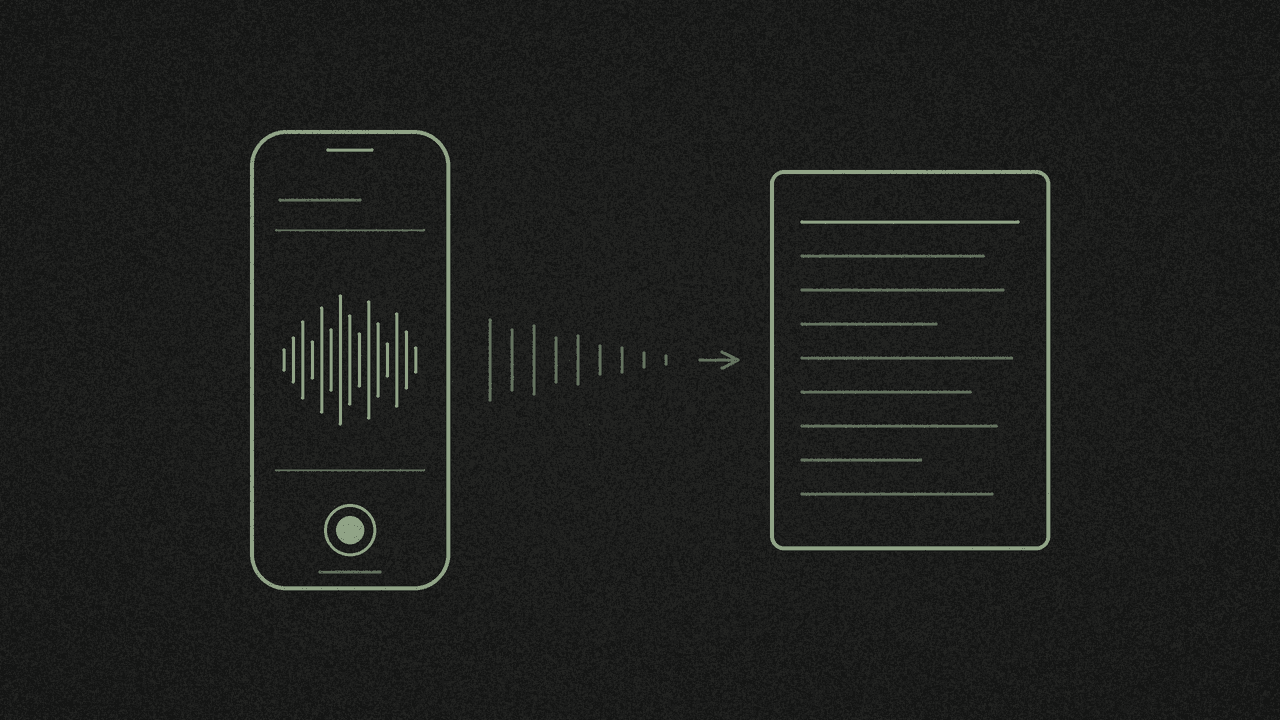
You recorded a voice memo and want the words as text. Your iPhone may already do it, so check that first. It's the quickest free route.
If your iPhone can't, export the recording and run it through a free transcriber in your browser. The steps for both are below.
1. Check whether your iPhone already transcribes it
On iOS 18 or later, Voice Memos can turn speech into text on its own. Apple's Voice Memos guide sets the limits: "Audio transcription is available on iPhone 12 or later in English (all variants), Spanish, Portuguese, Italian, French, German, Japanese, Korean, Simplified Chinese, and Traditional Chinese. It's not available in all countries or regions."
If that covers you, open Voice Memos, tap the recording, tap More, then tap Copy Transcript. Paste it into Notes, Mail or a text file. To copy only part of it, choose View Transcript, select the text and tap Copy.
Apple's guide mentions Apple Intelligence only for summaries and Writing Tools, not for the transcript itself.
If you only need the words, you're done.
When to use a different tool
Carry on if any of these apply to you:
- Older iPhone. You have an iPhone 11, an iPhone SE (2nd generation) or older. Apple's transcript needs an iPhone 12 or later.
- Another language. The memo is in a language that isn't on Apple's list.
- Your region. Apple doesn't offer the transcript where you live.
- You want timestamps or subtitles. Apple's guide only describes copying the text. It doesn't describe a subtitle file.
- You'd rather use a computer. That includes a Windows PC.
2. Export the voice memo as an .m4a
In Voice Memos, tap the recording, tap More, then tap Share. Tap Options and keep Rendered. Apple's sharing guide describes that as "a single .m4a file with all audio effects and layers mixed in".
Skip Editable. It's meant for adjusting effects and layers later, and it hasn't been tested with the transcriber.
Then pick where the file goes:
- Save to Files keeps it on your iPhone or in iCloud Drive. Apple's export guide has the steps.
- AirDrop, Mail or Messages sends it to another device. For a Windows PC, mail it to yourself.
3. Open the free media transcriber
Open the free media transcriber in Safari on your iPhone, or in a browser on your computer. Tap Choose an audio or video file and pick the .m4a. It reads M4A, MP3, MP4, WAV and other common formats.
4. Let the speech model download once
The first time, your browser downloads a Whisper speech model and keeps it for next time. The page shows the size while it downloads. After that, your device runs the model itself, so the recording never leaves your device.
On a phone, keep the tab open and the screen on until it finishes, because phones pause pages in the background. On an older computer or a phone, it can take as long as the recording or longer. Long memos are faster on a computer.
5. Read it and fix the mistakes
The text appears as it goes, with a time on each line. Check names, numbers and jargon against the audio, then fix them by hand.
Three limits to know:
- Language. Whisper detects the spoken language on its own. There's no language picker, and English is the most accurate.
- No translation. You get text in the language that was spoken.
- No speaker labels. If two people talk, add their names yourself.
6. Copy or download the format you need
- Copy or Plain text .txt for notes and documents. You get the words only, with no timestamps.
- SubRip subtitles .srt for video editors and YouTube.
- WebVTT subtitles .vtt for players on a web page.
Not sure which subtitle file you need? SRT vs VTT: which file to pick is written for TikTok captions, but its advice works for any subtitle file.
If your clip is a TikTok
You don't need the audio file. For a TikTok link, the TikTok transcript generator reads the video's own captions. Does shinmuscat transcribe audio or read captions explains the difference.
What leaves your device
Your recording doesn't. Your browser downloads the speech model from Hugging Face and some supporting code from jsDelivr, and the page loads Google Analytics. None of these sends anything from your file.
Next step
Have a memo your iPhone won't transcribe? Open the free media transcriber, pick the .m4a and keep the tab open until it's done. It's free, with no signup.
Transcribe your own recording
Open an audio or video file in the free media transcriber. It runs on your device, so nothing is uploaded. Copy the text or download TXT, SRT or VTT.