Screen vs Screen + Camera vs Camera Only
Screen vs Screen + camera vs Camera on shinmuscat: when to pick each browser mode, with honest audio and phone limits. Free, no signup, no upload.
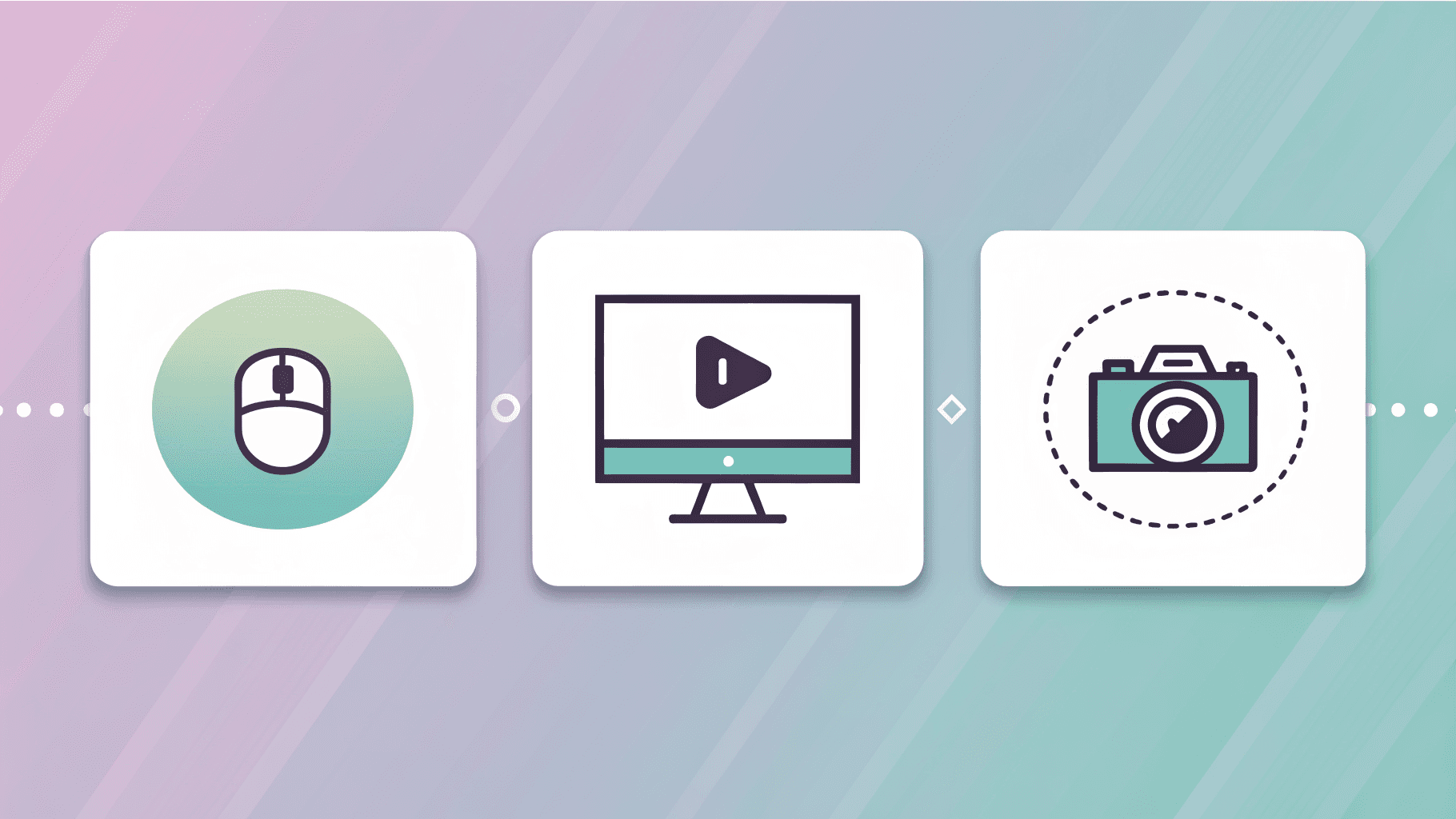
Open a browser recorder and the first freeze is usually the mode tile: Screen, Screen + camera, or Camera. shinmuscat's screen recorder puts those three choices under one cursor. Pick a mode, run the 3-2-1 countdown, then pause, resume, or stop and download the file to your device. No signup, no upload, no watermark, and no paid tier. How long a take can run depends on your browser and device, not a shinmuscat meter.
The free / no-watermark promise is covered in Free browser screen recorder with no watermark. This post is the modes chooser: which tile fits the job.
Screen
Use Screen when the display is the point: a product walkthrough, a bug repro, a slide deck, or a tab you need people to follow. The tool captures the screen you share in the browser prompt. Screen capture needs a desktop browser (Chrome, Edge, Firefox, or Safari). Phone browsers do not expose a screen-capture API to websites.
Screen + camera
Use Screen + camera when face and screen both matter: a talking-head demo, a lecture-style walkthrough, or a support reply where presence helps. The live tool records both under that one tile. The screen half still needs a desktop browser. Leave overlay layout craft for another day; today is only which mode to select.
Camera
Use Camera for webcam-only takes. This is also the mode that works on most phone browsers, because camera capture does not need the missing screen-capture API. If you are on a phone and expected to record the display, switch to a desktop browser or stick to Camera only.
Audio (short and honest)
Microphone is on by default for every mode. Computer sound only arrives if you enable it in the share prompt: share a tab with "Also share tab audio," or share the entire screen with "Share with system audio." Recent Chrome and Edge can take system audio on Mac and Windows. A single window cannot share sound. Safari does not capture computer audio. If you start without tab or system audio when you need it, the recorder warns so you can pick again.
Download, formats, optional transcript
Save the take locally as MP4 or WebM (formats named on the product page). The recording never leaves your device. After a take you can optionally transcribe in the same tab: a small speech-recognition model (Whisper) downloads to the browser on first use and runs on-device, so the audio never leaves the computer. The download works without it.
Next step
Open the free browser screen recorder, pick Screen, Screen + camera, or Camera, and download a take with no watermark.
Record in your browser
Screen, camera, or both. Download locally. No signup, no upload, no watermark.