How to Record a Video of Yourself on a Laptop Without an App
How to record a video of yourself on a laptop without an app: pick Camera in a free browser recorder, allow the webcam, record, then download MP4 or WebM.
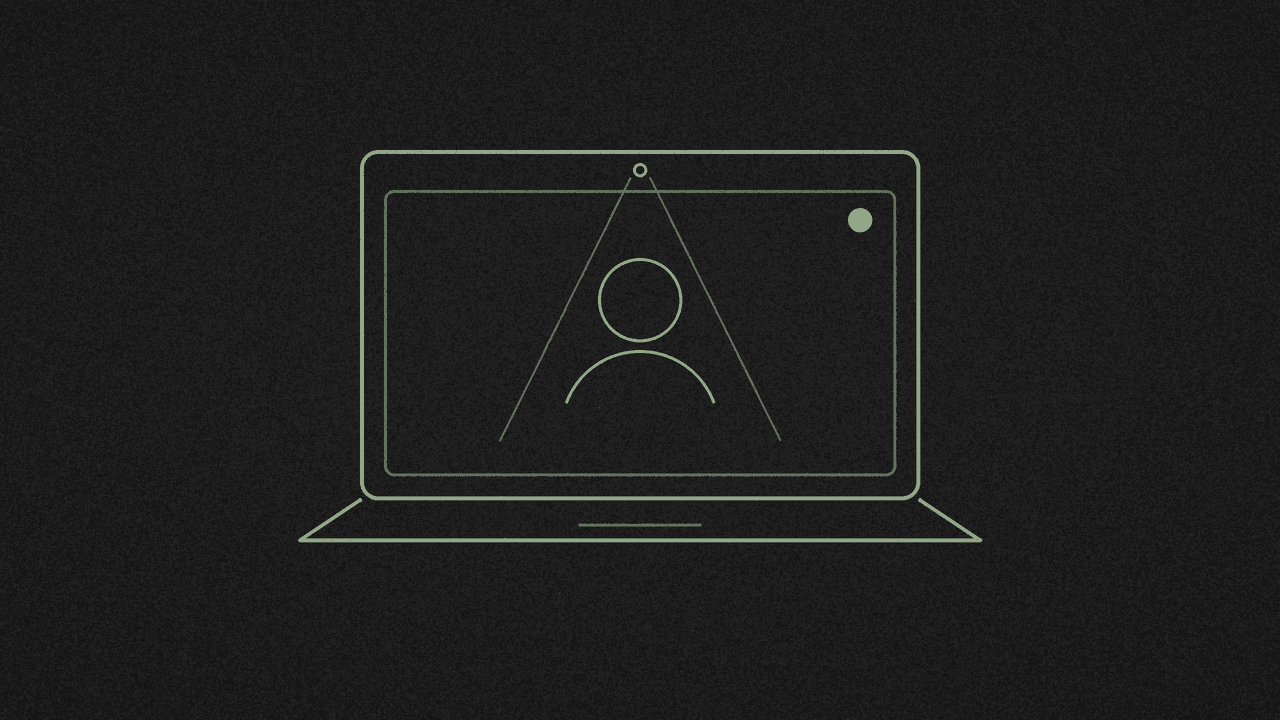
You want a clip of yourself talking to the webcam, and you don't want to install anything. Your browser can do it. Open the free screen recorder, pick Camera, allow the webcam, record, and download the file to your laptop.
Your laptop may also ship with its own camera app. This guide sticks to the browser route.
1. Pick Camera
Open the screen recorder and choose Camera under Recording mode. The other two modes, Screen and Screen + camera, capture your display as well. Not sure which you need? See Screen vs Screen + camera vs Camera.
Leave Microphone on. It starts on by default, and your voice needs it. Camera mode has no computer-audio switch, so the take holds your webcam and your mic.
2. Press Start recording and allow the camera
Click Start recording. Your browser asks for camera access, and microphone access too if the mic is on. Click Allow. The browser handles this prompt; MDN's getUserMedia page explains how sites request a camera.
The recorder uses your browser's default camera. There is no camera picker on the page, no mirror toggle, and no preview until you press Start. If you have a second webcam plugged in, set the default in your browser first.
3. Watch the countdown, then talk
A 3-2-1 countdown runs. A live preview of your face appears during the countdown and stays up while you record, so you can check your framing before the first word.
The status line shows Recording and the elapsed time. Use Pause and Resume if you lose your place. Click Stop when you finish.
4. Review and download
Your take plays back on the page. Click Download to save it to your laptop as MP4 if your browser supports it, otherwise WebM. Free, with no signup and no watermark.
Want another go? Click Record again. If the take has sound, a Transcribe button appears. It runs Whisper in your browser, and the model downloads the first time you use it.
If the camera is blocked
The recorder shows one of three messages.
"Access was blocked." Click the icon at the left of the address bar, set Camera and Microphone to Allow, then try again. Google's Use your camera and microphone page covers Chrome.
"No camera or microphone was found on this device." Check the webcam is connected, or switch Microphone off and try again.
"Another app is already using your camera or microphone." Close the video call or other app holding the camera, then press Start again.
Still blocked? Your laptop may deny the browser itself. On a Mac, see Apple's Control access to your camera on Mac. On Windows, see Microsoft's Manage app permissions for your camera in Windows.
Where your recording goes
The recorder uses your browser's own tools, and the file saves straight to your device. Your recording never goes to our server. The site uses Google Analytics to count visits. More on the privacy page.
Need your slides in the shot too? Here's how to record a Google Slides or PowerPoint presentation with your face.
Next step
Open the free screen recorder, pick Camera, keep the mic on, allow the webcam, and download MP4 or WebM when you stop.
Record in your browser
Screen, camera, or both. Download locally. No signup, no upload, no watermark.