How to Record a Google Slides or PowerPoint Presentation With Your Face
How to record a presentation on PowerPoint or Google Slides with your face: put the deck in Slideshow, pick Screen + camera and Entire screen, download.
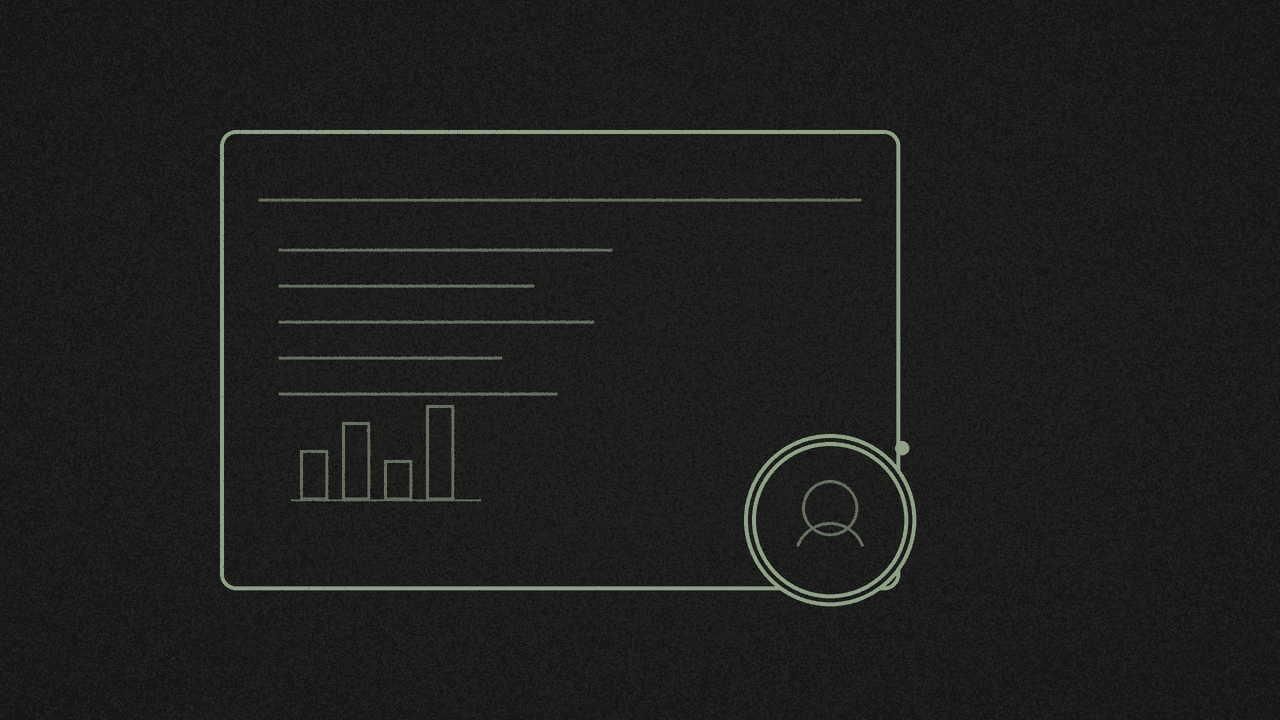
You have a deck open and you want the slides plus a round camera bubble of your face in one take. Put the presentation into Slideshow or Present first, then record with Screen + camera and pick Entire screen so the bubble is in the capture. Download the file to your device when you stop.
1. Put the deck in present mode
Do this before you open the recorder, so the first frame of the take is already full screen.
Google Slides. Open the presentation and press Slideshow at the top right. Google's Present slides help page covers that button; Esc exits. Google notes Chrome for best results.
PowerPoint. Open the Slide Show tab and choose From Beginning (or Present). Microsoft's Present your slide show page is the primary reference. PowerPoint also has a built-in Record a slide show with narration path if you prefer Microsoft's own recorder; this guide uses the browser path instead.
2. Open Screen + camera on a desktop browser
Open the free screen recorder in a desktop browser. Screen capture needs a desktop browser; phones only get Camera mode.
Pick Screen + camera. Leave Microphone on so your voice is in the take. Leave Tab/system audio on if the deck plays video or other computer sound. Recent Chrome and Edge can capture system audio on Mac and Windows; Safari cannot capture computer audio.
Not sure when Screen + camera fits versus Screen alone? See Screen vs Screen + camera vs Camera.
3. Start recording and pick Entire screen
Press Start recording. In the browser share prompt, choose Entire screen. The recorder hints you to do that so your camera bubble shows up in the recording. Sharing a single window or a tab will miss the bubble, because the bubble is a separate picture-in-picture window on top of the display.
If the deck has sound, switch on Share with system audio (entire screen) in that same prompt. Chrome's wording can vary; some versions say Also share system audio. The browser's share surfaces (tab, window, screen) are documented on MDN's getDisplayMedia page.
Allow the camera (and mic if prompted). A short countdown runs, then recording starts. Advance the slides with the usual present keys. Use Pause or Stop when you are done.
For the share-prompt walkthrough in more detail, see how to record your screen in Chrome without installing anything.
Recording a Google Meet instead? That job usually shares the Meet tab with "Also share tab audio", not Entire screen. See record a Google Meet on a laptop with audio.
4. Download, and optional transcript
Click Download. The file saves on your device as MP4 where the browser supports it, otherwise WebM. Free, with no signup, no watermark, and no upload of the recording.
If the take has sound, a Transcribe button appears. It runs Whisper in your browser. The model downloads the first time you use it; the audio stays on your device.
Where your recording goes
The screen recorder uses your browser's own tools and lets you download the file straight to your device. Your recording never goes to our server. The page does load Google Analytics, which counts visits. More on the privacy page.
Next step
Deck in Slideshow or Present? Open the free screen recorder, pick Screen + camera, choose Entire screen, keep the mic on, and download MP4 or WebM when you stop.
Record a presentation with your face
Screen + camera, Entire screen so the camera bubble shows, mic on, then download MP4 or WebM. Free, with no signup.