How to Screen Record on Windows 11 With Sound
Screen record on Windows 11 with sound: Snipping Tool, Xbox Game Bar or your browser, plus quick fixes when the mic or computer sound goes missing.
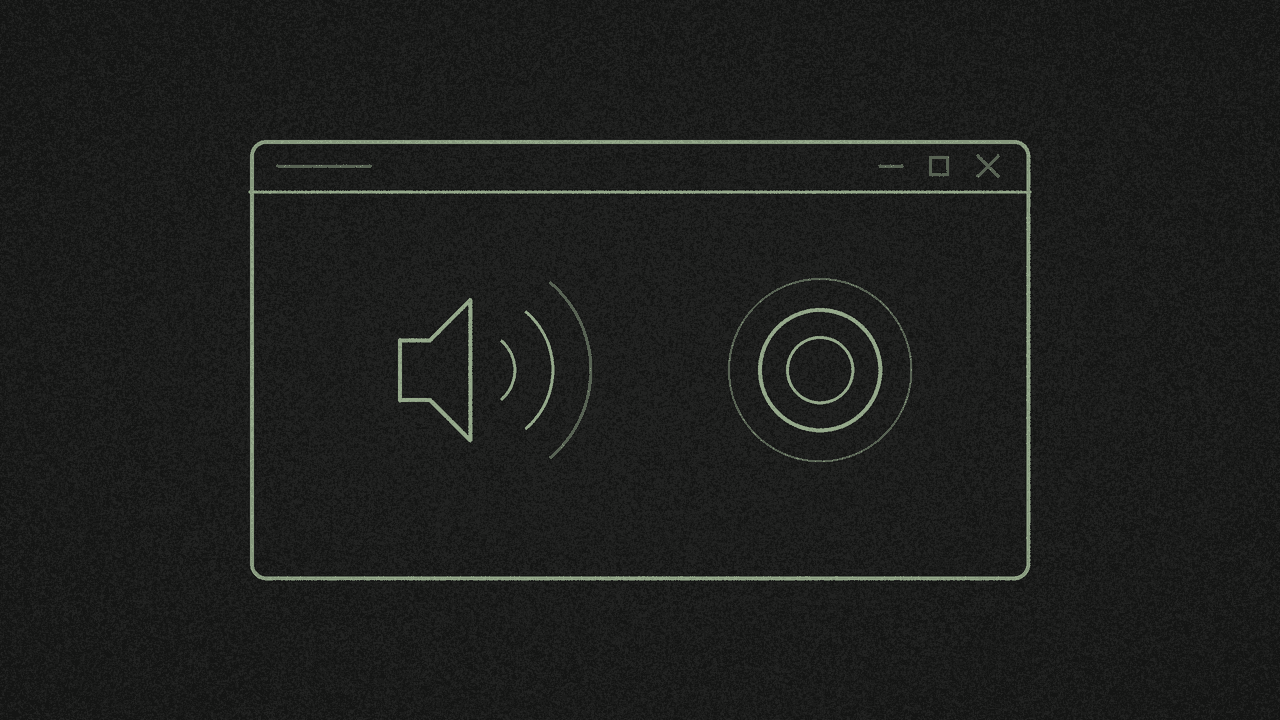
Yes, Windows 11 can record your screen with sound, and you have three free ways to do it. Snipping Tool records an area of the screen. Xbox Game Bar records one game or app. Your browser can record the whole screen with nothing to install.
Each one has a catch with audio. Here's which to pick and how to get the sound in.
1. Pick the tool that fits
- Snipping Tool: any area of the screen you draw, with your computer's sound and your mic in recent versions.
- Xbox Game Bar: one game or app at a time. It won't record the desktop or File Explorer.
- Chrome or Edge: your entire screen, a window or a tab, with no install.
All three can pick up everything your PC plays, including notification sounds. Turn those off before you start.
2. Snipping Tool with sound
Press Windows logo key + Shift + R, or open Snipping Tool, select Record, then New. Draw the area you want, select Start, and select Stop when you're done. Microsoft's Snipping Tool guide has the steps.
For sound, look for the audio and microphone options in the recording bar or in Snipping Tool's settings, and switch on the ones you want. Microsoft added "recording your PC audio and voice overs using a microphone" in version 11.2307.44.0, according to its Windows Insider Blog. If you have more than one mic, you can choose which to use.
Don't see any audio options? Update Snipping Tool from the Microsoft Store.
3. Xbox Game Bar with sound
Game Bar is built for games, but it records most apps too. To include every sound:
- Press Windows key + G to open Game Bar, then open its settings.
- Under Capturing, choose All. Microsoft describes it as "game, enabled mic, apps, system".
- Go to the app you want, then press Windows key + Alt + R to start.
- Press Windows key + Alt + M to switch your mic on or off.
- Press Windows key + Alt + R again to stop.
Your video lands in Videos > Captures as an MP4, named after the app with the date and time, according to Microsoft's Game Bar guide.
The catch: Game Bar records one app. Try it on the desktop or in File Explorer and you'll get a message saying gaming features aren't available there. Use Snipping Tool or your browser instead.
4. Record in Chrome or Edge without installing anything
Open the free in-browser screen recording tool. Microphone and Tab/system audio are on by default. Choose Screen, Screen + camera or Camera. If you want your face in the corner, see Screen, Screen + camera or Camera.
The share prompt opens on your entire screen. On Windows, switch on Share with system audio there (Chrome sometimes words it "Also share system audio"), and your computer's sound comes along.
- A tab needs Also share tab audio switched on.
- A window can include sound in Chrome 142 or later on Windows 11, but you get all of your computer's sound, not just that window's. Older versions only offer sound with a tab or the entire screen, so those two are the safe picks.
If nothing is coming through, the recorder says so and offers Pick again. For every click in the share prompt, see record your screen in Chrome without installing anything.
5. No sound? Check these Windows settings
- Mic permission. Go to Start > Settings > Privacy & security > Microphone. Turn on Microphone access, Let apps access your microphone and Let desktop apps access your microphone. Chrome and Edge count as desktop apps. Microsoft's microphone guide covers all three.
- Output device. In Settings > System > Sound, pick the speakers or headphones you're actually using. If an external monitor without speakers is selected, Microsoft says "you won't have any audio".
- Muted apps. Open the Volume mixer and make sure nothing is muted.
- Browser permission. If Chrome blocked the mic, click the icon at the left of the address bar and set Microphone to Allow.
- Bluetooth headset mic. When an app opens the headset's mic, Windows switches it to hands-free mode, which is mono and lower quality. For better sound, use your laptop's built-in mic or a wired or USB mic.
6. Save it, and get the words if you want them
When you stop, select Download to save the video as MP4 or WebM, whichever your browser supports. If the take has sound, you can also turn it into a TXT, SRT or VTT transcript on your device.
What stays on your PC
Your files never leave your device. If you transcribe, your browser downloads a speech model from Hugging Face and its code from jsDelivr. The page also loads Google Analytics.
Next step
Open the free in-browser screen recording tool, share your entire screen with Share with system audio switched on, and record a test clip first. It's free, with no signup.
Record in your browser
Screen, camera, or both. Download locally. No signup, no upload, no watermark.