How to Blur a Face or Number Plate in a Photo
Blur a face or number plate in a photo for free: select the area in your browser, apply Gaussian Blur or Pixelate, check it at full size, then export.
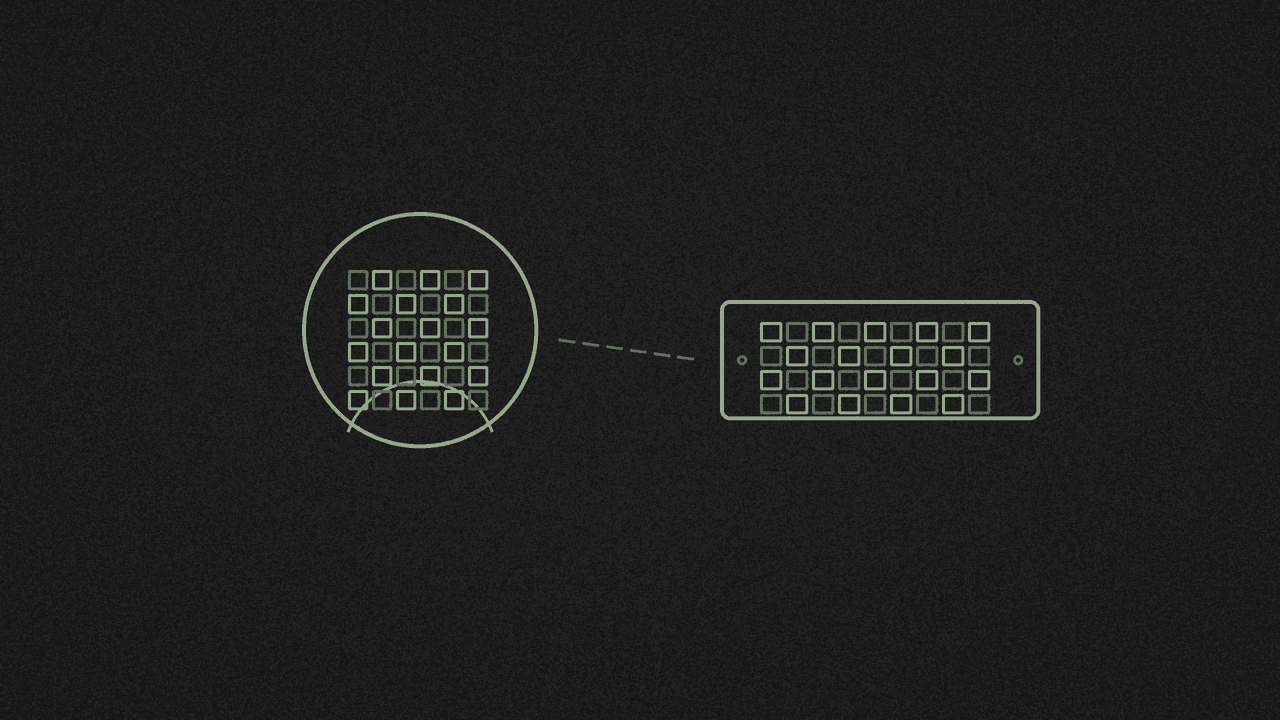
Open the photo in the free image editor, select the face or plate, then apply Filter › Gaussian Blur or Filter › Pixelate. Check it at full size and export. There's no one-click face blur, so you pick the area yourself.
1. Open your photo
Go to the image editor and open the photo. There's no account to make, and the photo stays on your device.
Work on a copy if you want to keep the original as it was.
2. Select only the face or plate
Pick the selection tool that fits the shape:
- Number plate: the Rectangular Marquee (
M). Drag a box just bigger than the plate. - Face: the Elliptical Marquee, or the Lasso (
L) to draw round it.
Same Elliptical Marquee (hold Shift for a circle) can cut a round portrait with transparent corners. See how to crop an image into a circle.
- Odd shapes: Object Selection or Quick Selection.
Select › Subject picks the whole person, not only the face, so use it only if you want the whole person blurred.
Want a softer edge? Use Select › Feather… before you blur.
3. Blur or pixelate it
With the area selected, open the Filter menu:
- Gaussian Blur… gives a smooth blur. Raise Radius (it starts at 5 px and goes up to 100 px).
- Pixelate… turns the area into squares. Raise Cell size (it starts at 12 px and goes up to 200 px).
The filter only changes what's inside your selection. You don't need Inverse or Edit › Clear. Clear deletes the pixels, which is for cutting out a background, not for hiding a face.
If the layer is a smart object, smart filters ignore the selection. Work on a normal pixel layer instead.
4. Check it at full size
Choose Select › Deselect and zoom right in. Can you still read the plate or make out the face? Undo, raise Radius or Cell size, then run the filter again. Small, sharp text often needs more than you think.
The Blur tool (R) paints a soft blur by hand, but it's easy to miss a patch. For plates, a box and a filter is safer.
5. Export it
Go to File › Export as and pick PNG, JPG or WebP. JPG is fine for a photo. If you'd made any area see-through, JPG turns it white.
Need to keep the file small? See how to resize an image without losing quality.
Where your photo goes
Your photo never leaves your device. The editor runs in your browser, and if you use an AI selection tool, your browser downloads its model from Hugging Face. The site also loads Google Analytics, which counts visits. More on the privacy page.
Next step
Got a photo to share? Open the free image editor, box the plate or face, and blur it before it goes anywhere. It's free, with no signup.
Blur it before you share it
Select a face or number plate and apply Gaussian Blur or Pixelate in your browser. Free, with no signup.