How to Split a PDF Into Multiple Files by Page Range
Split a PDF into multiple files by page range: type ranges like 1-3, 5, 8-10 and get one PDF per range, zipped together. Free, in your browser.
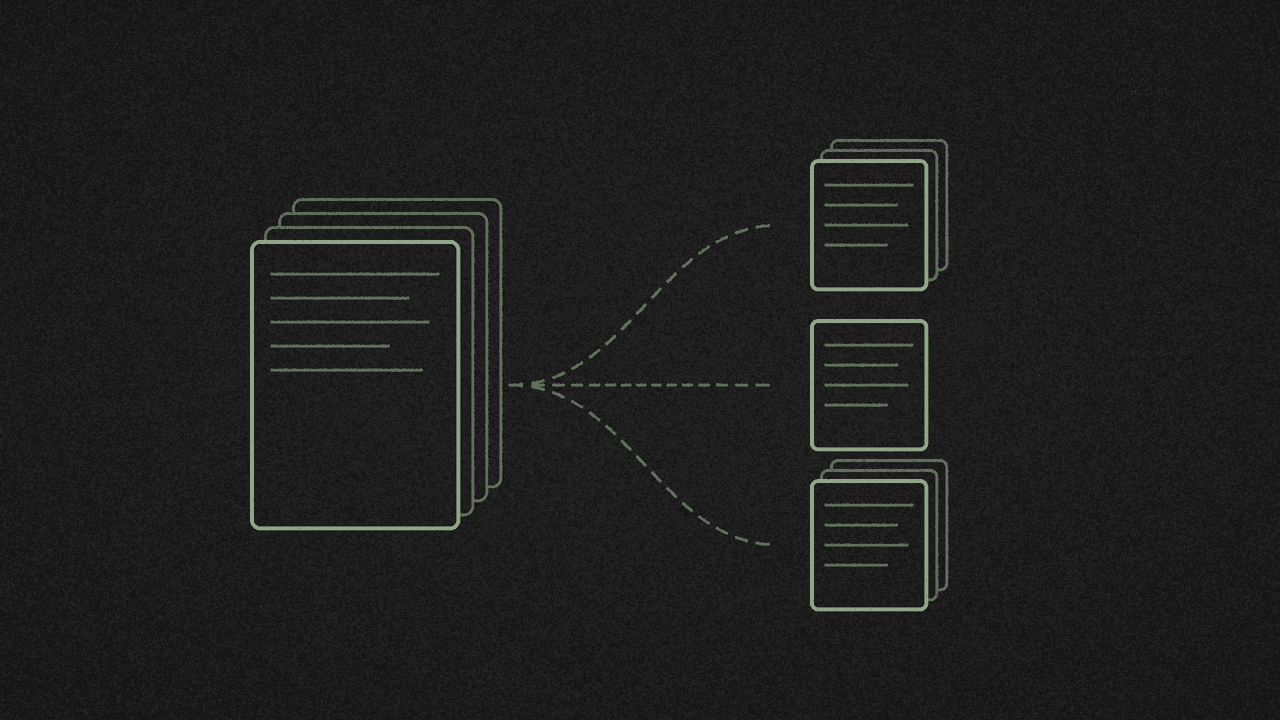
Need chapters 1 to 3 as one file, page 5 as another and the appendix as a third? Type the page ranges once and you get a separate PDF for each, in your browser, with no signup.
1. Open your PDF in Split
Open the free PDF tool, choose Split and pick your PDF, or drop it in. A thumbnail of every page appears, so you can see where each section starts.
2. Pick a split method
- Every page turns each page into its own PDF.
- Page ranges makes one PDF for each range you type.
- Pick pages lets you click thumbnails and combines the pages you picked into one new PDF, in page order.
Want to drop unwanted pages and keep the rest as one file? Here's how to delete pages from a PDF without Acrobat (Split → Pick pages; there is no Delete button).
For splitting by range, choose Page ranges.
3. Type your ranges
In Pages to extract, separate each part with a comma. Each part becomes its own file, so:
- 1-3, 5, 8-10 gives three PDFs: pages 1 to 3, page 5, and pages 8 to 10.
- Spaces are fine, so 1 - 3, 5 works too.
- Ranges can overlap. 1-3, 2-4 gives two files, and page 2 is in both.
Shortcuts like "5-" or "all" don't work. Write the full range, such as 5-12. The hint under the box tells you how many pages the document has.
If something's off, the tool tells you what. A range like "9-4" "runs backwards", a page past the end is "outside this document", and anything that isn't a number or range gets flagged too.
4. Save just one page
Type one number, such as 5, or use Pick pages and click one thumbnail. You get a single PDF, not a zip.
To keep several pages and leave the rest out in one go, see delete pages without Acrobat.
5. Split and download
Click Split and download. One result downloads as a plain PDF. Several arrive in one zip named after your file, such as report-split.zip, with files inside like report-pages-1-3.pdf and report-pages-5.pdf.
Need them back together later? Merge works the same way in reverse.
6. Check the result
The pages look the same as in the original. Open each file and check its bookmarks and links, since they may not carry over.
If the PDF has a password, remove it in the program that made it first. The tool can't open locked files.
Image export always turns every page into an image, so split first if you only want one page as a picture, then open that file and export it.
Where your files go
The split runs in your browser, so your files never leave your device. The page does load Google Analytics.
Wondering what upload converters do with your file? See are online PDF converters safe.
On a Mac, Preview can do a quick version: Apple's Preview guide says you can "create a new PDF by dragging thumbnails from a PDF sidebar to the desktop."
Next step
Open the free PDF tool, choose Split, then Page ranges, type your ranges and click Split and download. It's free, with no signup.
Split your own PDF
Open a PDF in the free PDF tool, choose Split and type page ranges like 1-3, 5, 8-10 to get one PDF per range. It runs on your device, so nothing is uploaded.