How to Combine JPG Images Into One PDF
Combine JPG images into one PDF in your browser: add your photos, put them in order and download one file, one image per A4 page. Free, no upload.
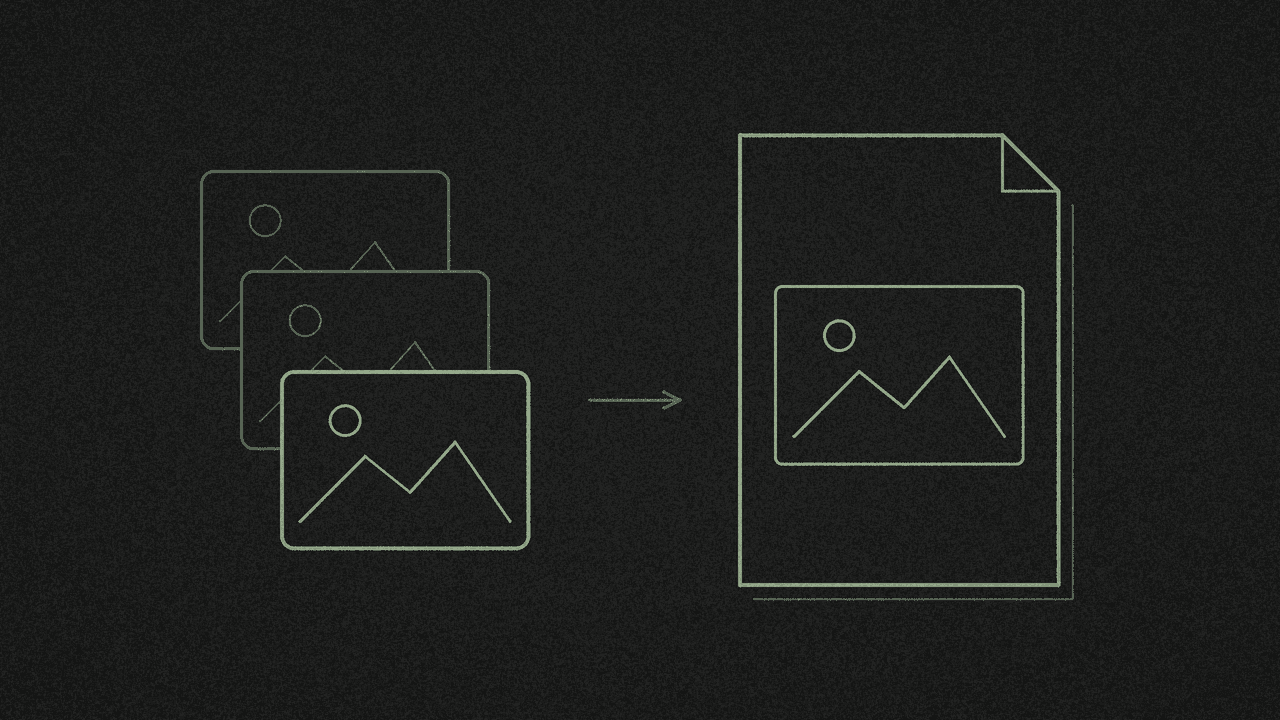
Got a pile of photos, receipts or scanned pages that need to go out as one file? You can combine JPG images into one PDF in your browser, with no signup and no upload.
Each image becomes its own page, in the order you choose. Here's how, plus the limits worth knowing before you start.
1. Get your images as JPG or PNG
The PDF tool takes JPG and PNG images, and PDFs too. It turns away HEIC and WebP files with a message saying the file is not a PDF, JPG or PNG.
iPhone photos are often HEIC, and many images saved from the web are WebP. Convert those to JPG first. Got faces or number plates in the photos? Blur them first, then export as JPG.
Want a product or signature cut out on a transparent background first? Export it as PNG, since the PDF tool doesn't take WebP.
Want the pictures laid out together instead of one per page? Make a mood board and export it as a PNG or PDF.
2. Open Merge and add your photos
Open the free PDF tool and pick Merge. Click the drop zone to choose your images, or drag them in. You need at least two files. Until then the button reads "Add at least two files to merge".
You can mix in PDFs as well. Their pages get copied in, one by one.
3. Put them in order
Each file shows in a list. Use the up and down arrows to move a file one place at a time, and the remove button to drop one you don't want. There's no drag-to-reorder, so for a long set it's quicker to add them in the right order to begin with.
4. Know how each page will look
- One image per page. You can't fit several photos on one page.
- Portrait A4 only. There's no page size, orientation or margin option.
- Shrunk to fit, never enlarged. Each image sits centred inside a margin of about 10 mm. A small image stays small, and a landscape photo sits across the page with white space above and below.
- Check rotation. If a photo looks sideways in your file viewer, rotate it before you add it.
5. Merge and download
Click Merge N files (N is how many you added). The result opens in the viewer as merged.pdf. Download it, or export it as Word, TXT, PNG or JPG.
Your JPGs go in as they are, without being compressed again, so quality stays the same. That also means the PDF won't come out smaller than your photos. If you need a smaller file, resize your photos first.
There's no limit set by the site. The real limit is your device's memory and the browser tab. If something fails, try fewer or smaller files.
6. Where your files go
The merge runs in your browser, so your files never leave your device. The page does load Google Analytics, which counts visits.
Here's what happens to your file on an upload converter.
On a Mac?
Finder can do it too. Select the images, Control-click, then choose Quick Actions > Create PDF. The pages follow the order you selected them in, according to Apple's guide.
Next step
Open the free PDF tool, choose Merge, add your photos and download merged.pdf. It's free, with no signup.
Need to go the other way? Here's how to split a PDF by page range.
Need to remove pages from a finished PDF? Delete pages without Acrobat by picking the ones to keep.
Combine your own images
Add JPG or PNG images to the free PDF tool and merge them into one PDF, one image per page. It runs on your device, so nothing is uploaded.